Customers and sites remembered
Type a customer and their sites once, then reuse them on every certificate
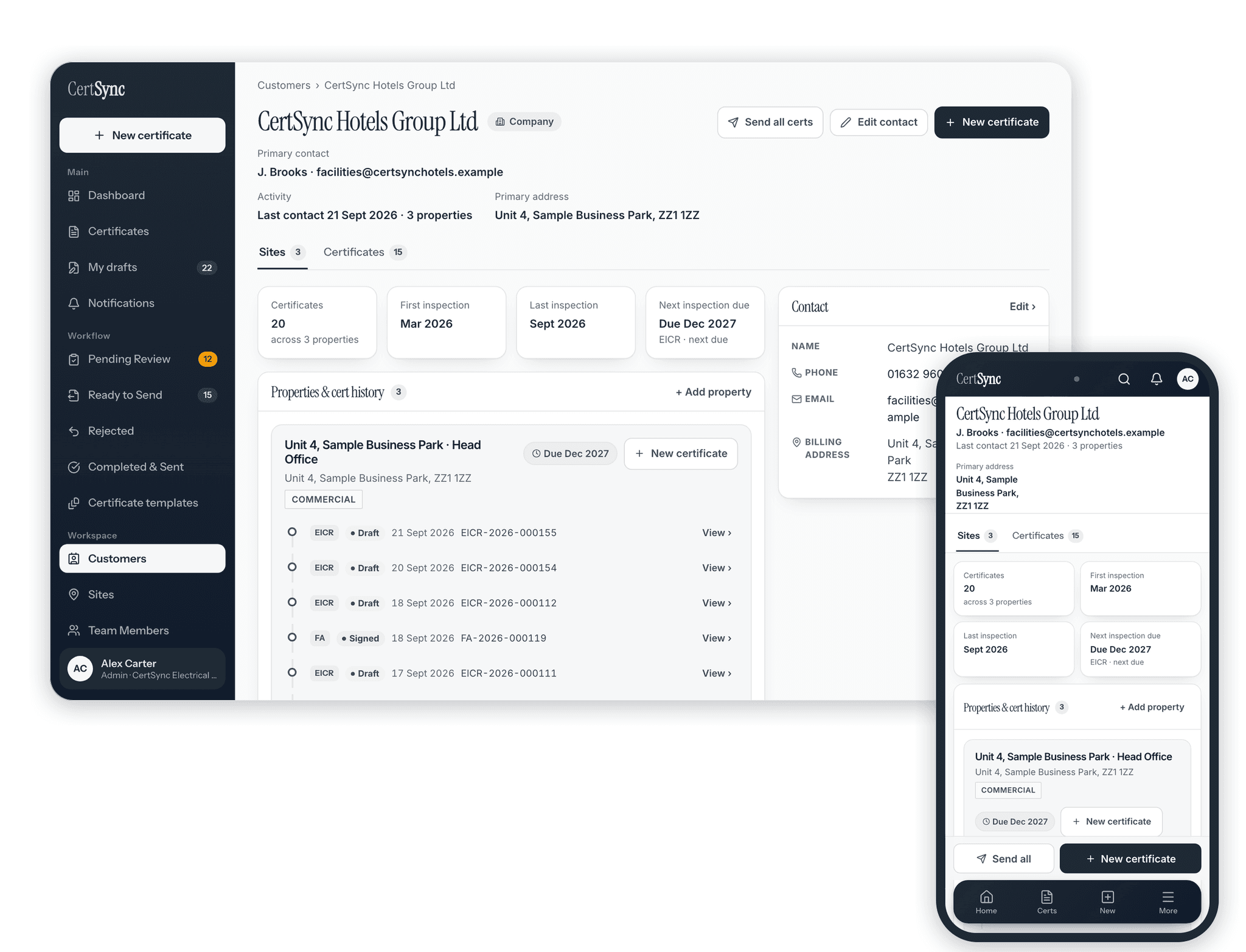
CertSync keeps a record for each customer with their contact details and every site you work on for them. Start a certificate from one of those sites and the client and installation details are filled in for you, on any of the 13 certificate types. Each site then shows the certificates issued there, so the history of an address is in one place.
What it does
Exactly what you get
- Each customer is saved as a person or a company, with contacts holding a name, email address and phone number.
- A customer can have several sites, each with its own label, address and postcode, and optionally a type such as domestic, commercial, industrial, HMO or care home.
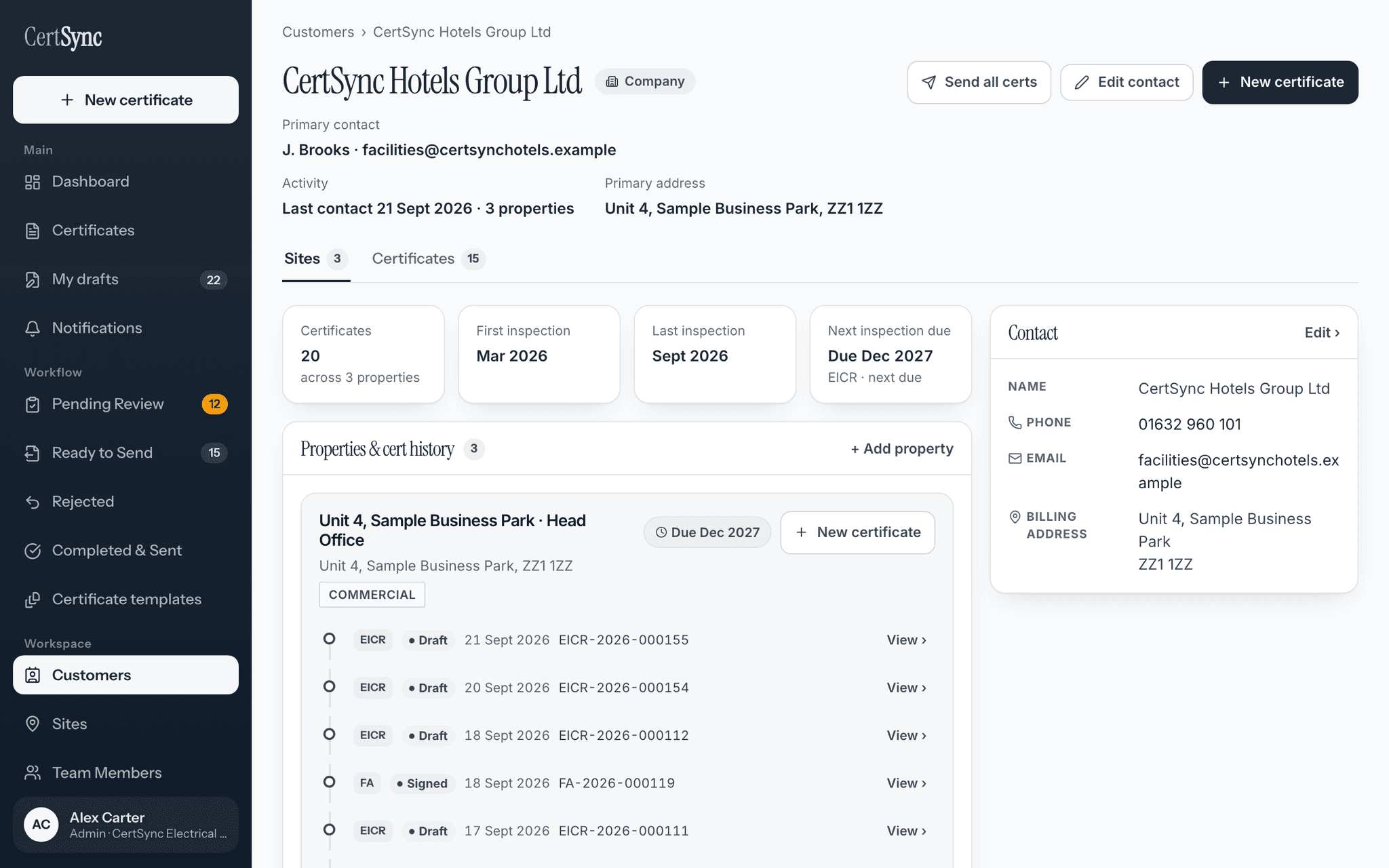
- The customer page shows how many certificates you have for them, the first and last inspection dates and when the next inspection is due.
- Each site lists the certificates issued at its address, newest first, with type, status and certificate number.
- A site's next inspection date is taken from the certificates issued for that site.
- Start a certificate from a customer or one of their sites and the client and installation details are filled in from the saved record.
- When a customer has more than one site, you choose which site the certificate is for, and that site becomes the installation address.
- Inside the form, Import customer pulls a saved customer into a certificate you have already started, on all 13 certificate types.
- The certificate is linked to the customer, which is what puts it in that customer’s history.
- A Sites list shows every property your team works on, searchable by address, postcode, site label or customer name.
- Bring your existing customer list across: Import CSV on the Customers page adds each row as a customer with a contact and a site, skips any customer you already have, and reports what happened to every row.
- Your company details and registration scheme, saved once in Settings, fill in the blank issuer fields on each new certificate.
- Test instruments saved in Settings fill in the blank instrument fields on each new certificate that records them, with make, model and serial number.
- Save your signature once and add it to your own declarations with one tap.
How it works
Three steps
Add the customer and their sites
Create the customer once with their contact details, then add each property you work on for them with Add property. The customer page keeps their contact details, sites and certificates together.
Start a certificate from the site
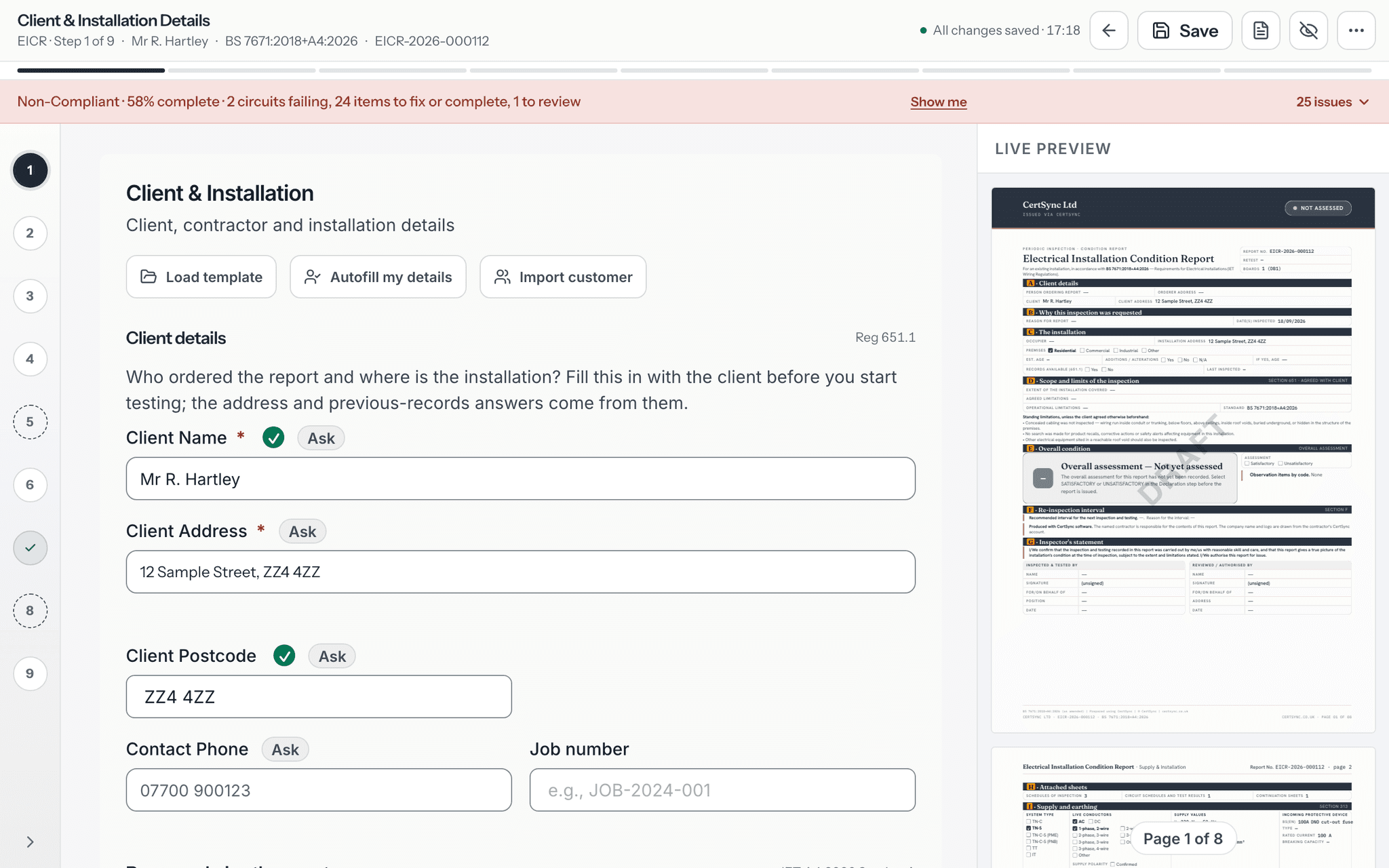
Press New certificate on a site card and pick the certificate type. The form opens with the client and the installation address already filled in. Already started a certificate? Use Import customer at the top of the form instead.
See the history build up
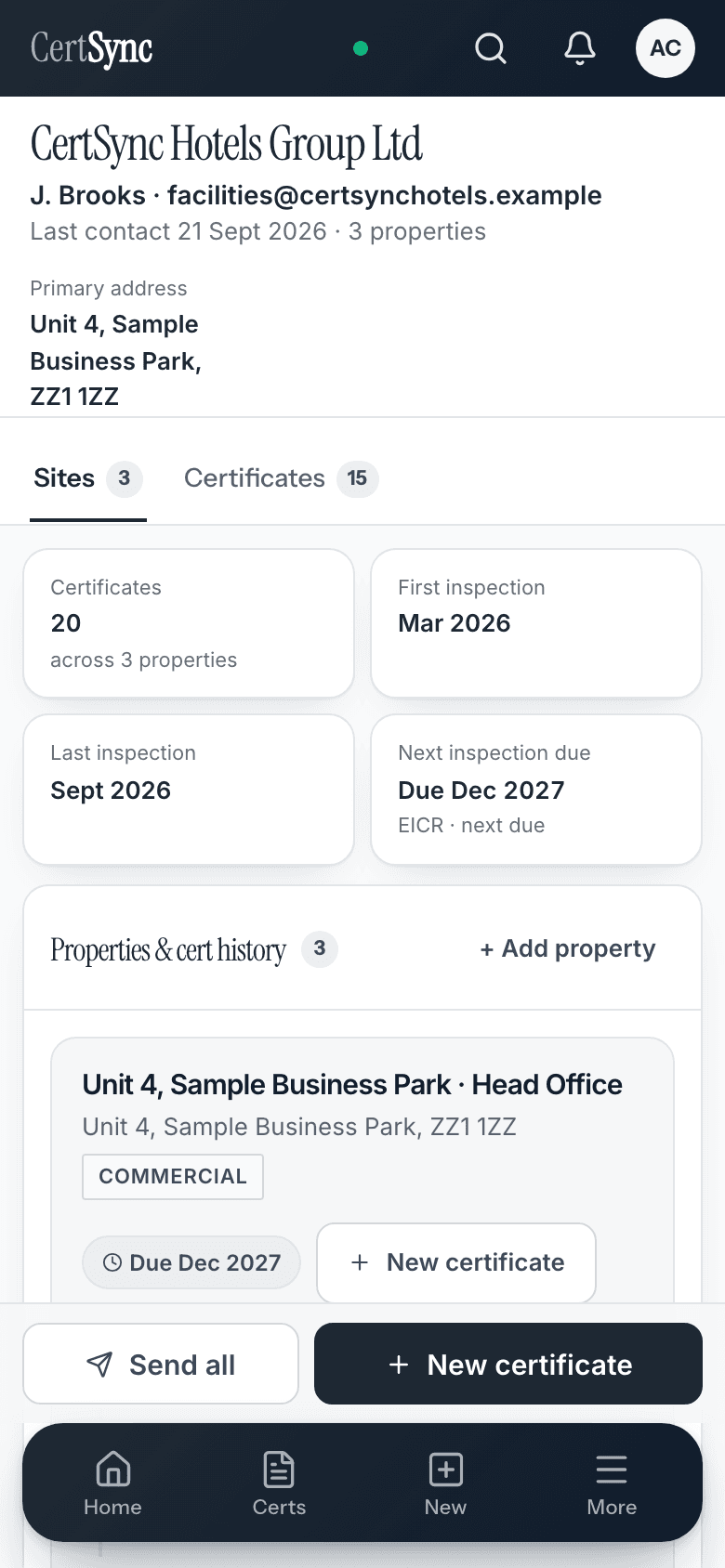
Each certificate you issue for that address appears under the site, so the next visit starts with what was done last time. The same record works on a phone.
Good to know
The details
- Importing a customer into a form fills blank fields straight away and asks before replacing anything you have already typed.
- Office staff can add and edit customers and sites, but do not see the New certificate buttons because they cannot start certificates.
- Removing a site is limited to admins and office staff. Only an admin can delete a customer, and not while a signed certificate is linked to them.
- Two customers in the same team cannot share a name, so the same customer is not saved twice by accident.
- If a new certificate records different supply characteristics from the most recent one at a site, the site card flags the difference.
- Send all certs sends a customer’s signed certificates together and tells you which were held back and why, such as not signed yet or already sent.
- Admins, supervisors and office staff can import customers from a CSV file. Installers cannot.
- Saved details only fill fields that are blank, so nothing you have already typed on a certificate is replaced.
Questions
Frequently asked questions
- Do I have to type the customer’s details on every certificate?
- No. Save the customer and their sites once. Starting a certificate from the customer page, or using Import customer inside the form, fills in the client and installation details on any of the 13 certificate types.
- What if the person paying is not at the address being tested?
- The client details come from the customer’s main contact and main address, and the installation address comes from the site you pick. A landlord with several properties is one customer with several sites.
- Can I see every certificate issued at one address?
- Yes. Each site on the customer page lists the certificates issued at that address, with their type, status and number, and links to each one.
- Can I bring my existing customer list?
- Yes. On the Customers page, choose Import CSV and upload a spreadsheet saved as CSV. Each row becomes a customer with a contact and a site. Customers you already have are skipped, and you see what happened to every row.
- Do I have to enter my company details and test instruments every time?
- No. Save your company details, registration scheme and test instruments once in Settings, and new certificates fill them in where the fields are blank. Save your signature too, and add it to your own declarations with one tap.
- Can office staff manage customers?
- Yes. Office staff can create and edit customers and sites, and can remove a site. They cannot start or sign certificates. Deleting a whole customer is kept for admins.
- Does every team member see every certificate on the customer page?
- No. The certificate list and the counts on the customer page follow the same visibility rules as the rest of CertSync, so each person sees what their role allows.
Keep reading
Related features, certificates and guides
Get started with CertSync
All 13 certificate types, one subscription. The first month is free.
First month free, then From £15/month. No fixed-term contract. Cancel any time.