Photo evidence
Add captioned photos to a certificate and print them on the PDF
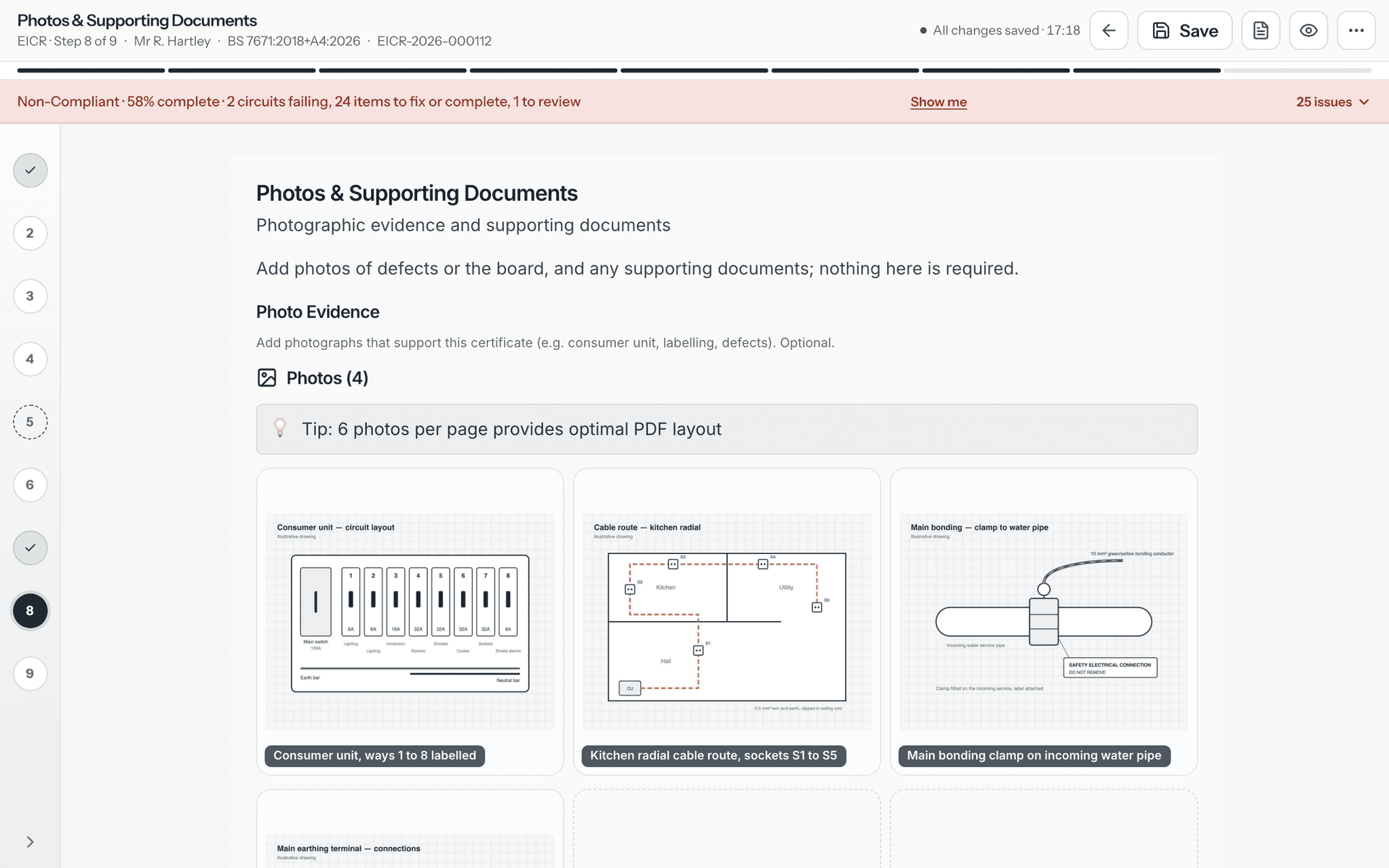
Every one of the 13 certificate types has a Photos & Supporting Documents step. Take a photo on your phone or add some from your device, give each one a caption, and they print on the certificate PDF your client receives. On an EICR you can attach photos to a specific observation too, and iPhone photos convert automatically.

What it does
Exactly what you get
- All 13 certificate types have the same Photos & Supporting Documents step, with a Photo Evidence section and a Supporting Documents section.
- On a phone, Take photo opens the camera. Add Photos opens your photo library or files, and you can pick several at once.
- Each photo can carry its own caption of up to 500 characters, and the caption prints under the photo on the PDF.
- iPhone photos in HEIC format are converted to JPEG automatically when they upload.
- Photos are resized and compressed when they are saved, and a small thumbnail is made for the photo grid.
- Location and camera details stored inside a photo are stripped out and never kept.
- On an EICR, each observation has its own photo box, so a photo of a defect stays with the observation it proves.
- On the EICR PDF, observation photos are tagged with the observation and its code, and the most serious codes come first.
- On a PAT record, an appliance that fails can have its own photos, printed with the appliance description.
- Every certificate type prints its photos on photo evidence pages in the PDF, up to 12, with a note of how many more are on file.
- Supporting documents can be PDF, Word, Excel or image files. PDFs and JPEG or PNG images are added to the certificate PDF; other files stay with the certificate and the PDF notes that they are not reproduced.
- Photos are stored privately, never at a public address. Each time one is opened, CertSync checks again that the person can still see that certificate.
How it works
Three steps
Open the Photos & Supporting Documents step
It sits in the certificate’s step list like any other step. Nothing on it is required, so add evidence where it helps and move on where it does not.
Take or add photos, then caption them
Tap Take photo to use the camera, or Add Photos to pick from your library. Tap Add caption under a photo to say what it shows. On an EICR, use the photo box on an observation to attach evidence to that observation instead.
Sign it and the photos go with it
When the certificate is signed, its photos and supporting documents are part of the PDF your client receives, and from then on they are locked with it.

Good to know
The details
- Once a certificate is signed, or approved and locked, photos and documents can no longer be added, re-captioned or deleted.
- Only people who can edit the certificate can change its photos. Office users can see them but not add, caption or delete them.
- You can add up to 50 general photos to a certificate, and up to 50 on each observation.
- Photos count towards your team’s shared storage allowance, the same size on both plans. A photo upload that would go over it is refused with a message saying so.
- Deleting a photo asks you to confirm first. The photo itself is removed, and a record of who deleted it and when is kept.
- With no signal, photos you take are stored encrypted on the device, shown with a Pending upload badge, and upload on their own when you reconnect.
- If a queued photo keeps failing to upload, it is marked Upload failed with Retry and Remove buttons rather than disappearing.
Questions
Frequently asked questions
- Do iPhone photos work?
- Yes. Photos in the iPhone HEIC format are converted to JPEG automatically when they upload, so they show in the app and print on the PDF like any other photo.
- Do the photos appear on the certificate my client receives?
- Yes. Every certificate type prints its photos, with your captions, on photo evidence pages in the PDF. Up to 12 photos print, and if there are more, the PDF says how many more are on file.
- Can I link a photo to a specific EICR observation?
- Yes. Each observation has its own photo box. On the PDF those photos are tagged with the observation and its code, and the most serious codes are printed first.
- Can I take photos without a signal?
- Yes. Photos you take with no signal are stored encrypted on your device and upload by themselves once you are back online. Until then they show with a Pending upload badge.
- Can I change the photos after the certificate is signed?
- No. A signed certificate is locked, and its photos and documents are locked with it. If something needs changing, issue a correction, which supersedes the original.
- Who can see the photos?
- Only people who can see the certificate. Photos are stored privately, and every time one is opened CertSync checks again that the viewer still has access to that certificate.
Keep reading
Related features, certificates and guides
Get started with CertSync
All 13 certificate types, one subscription. The first month is free.
First month free, then From £15/month. No fixed-term contract. Cancel any time.