Team review and sign-off
Installers submit, supervisors sign, the office sends
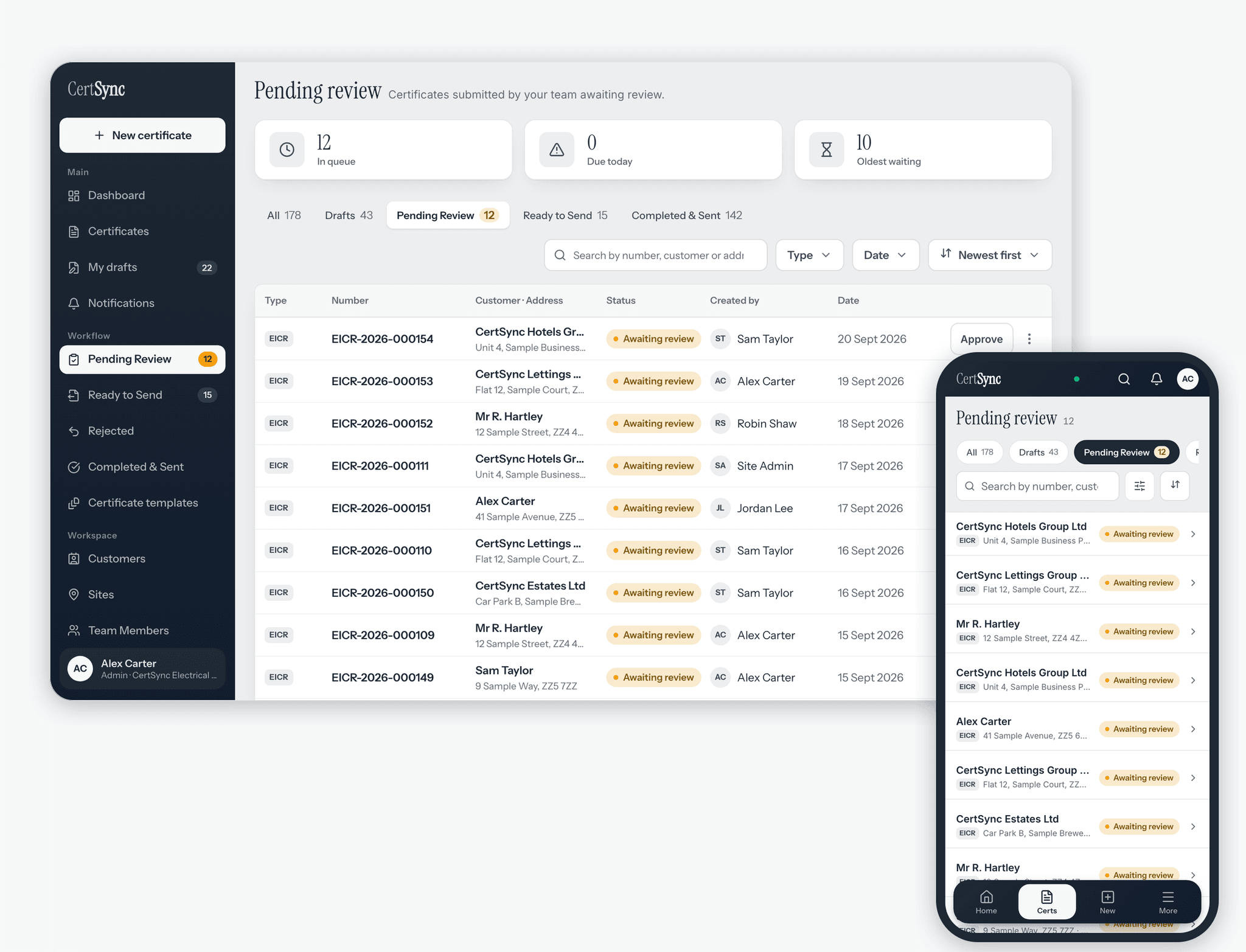
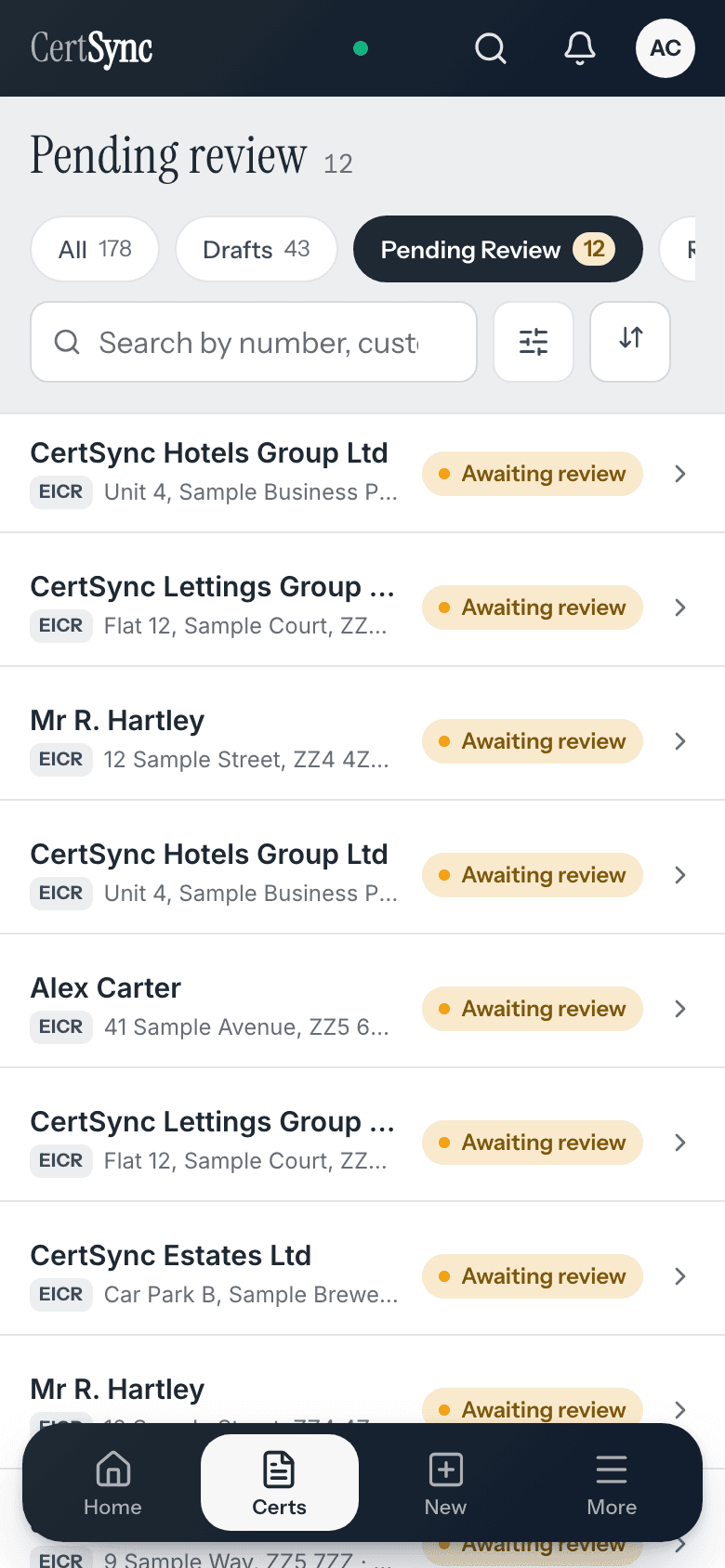
In CertSync an installer finishes a certificate and submits it for review. A supervisor or admin checks it in the review queue, then approves and signs it or sends it back with a note. Signed certificates wait in Ready to send until an admin or office user emails them to the customer. It works the same on all 13 certificate types, and if you work alone you sign your own work directly.
What it does
Exactly what you get
- Every team member has one of four roles: admin, supervisor, installer or office, each with its own fixed set of permissions.
- An installer submits their own certificate for review. Only the person who created a certificate can submit it.
- When a certificate is submitted, the supervisors and admins on the team get a notification, unless they have switched that notice off.
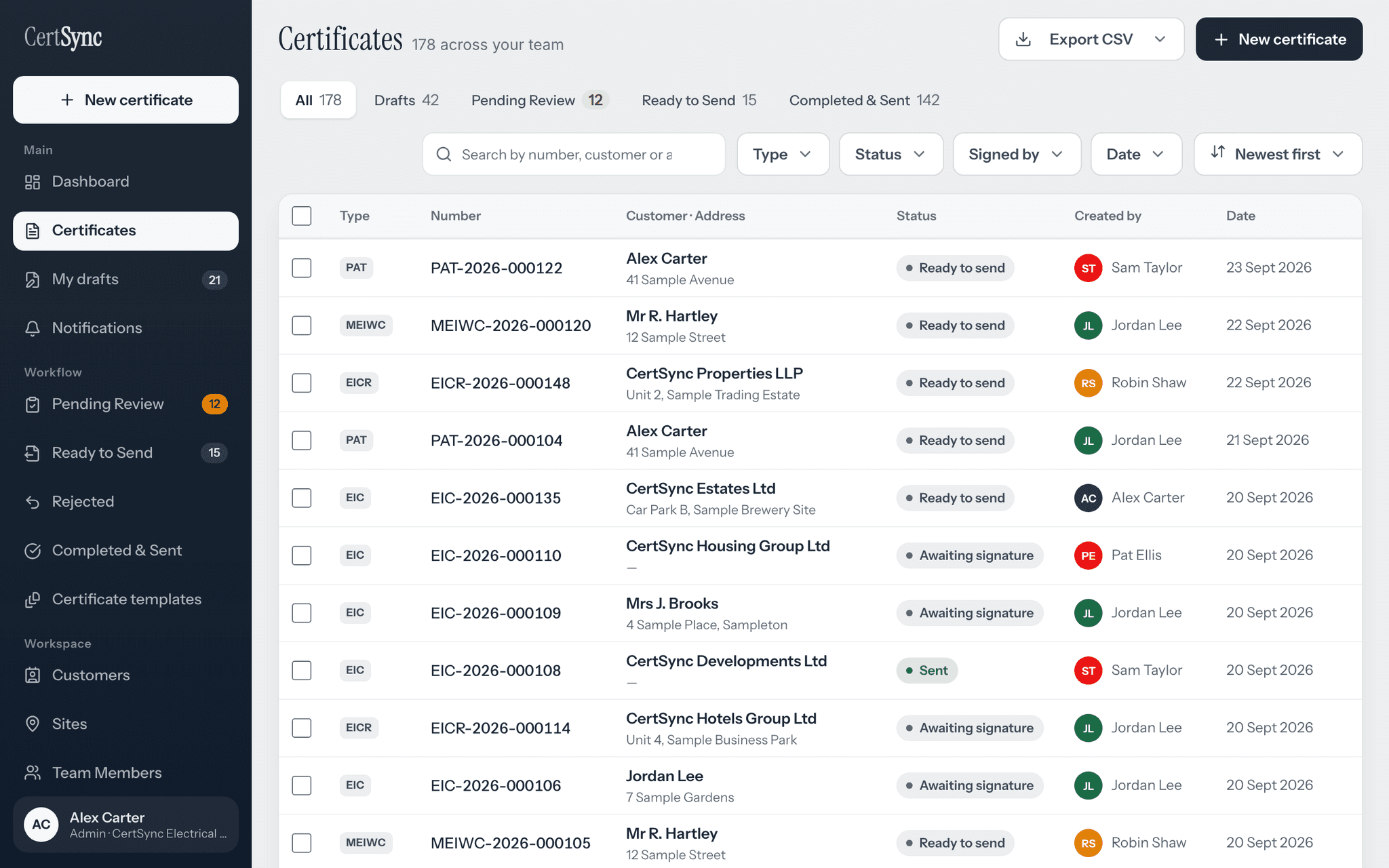
- The review queue is open to supervisors and admins, who can approve and sign. Installers cannot open it.
- A reviewer can send a certificate back with a note of 10 to 1,000 characters. It returns to draft, the installer is told why, and it is listed under Rejected until it is fixed and resubmitted.
- Approving and signing are separate steps. Approval queues the certificate for a signature; only a supervisor or admin can do either.
- Signing gives the certificate its final number and stores the signed PDF.
- A signed certificate cannot be edited. A correction is made by issuing a new certificate that replaces it.
- An admin or supervisor who finishes a certificate signs it straight away, with no review step, so a one-person business signs its own work.
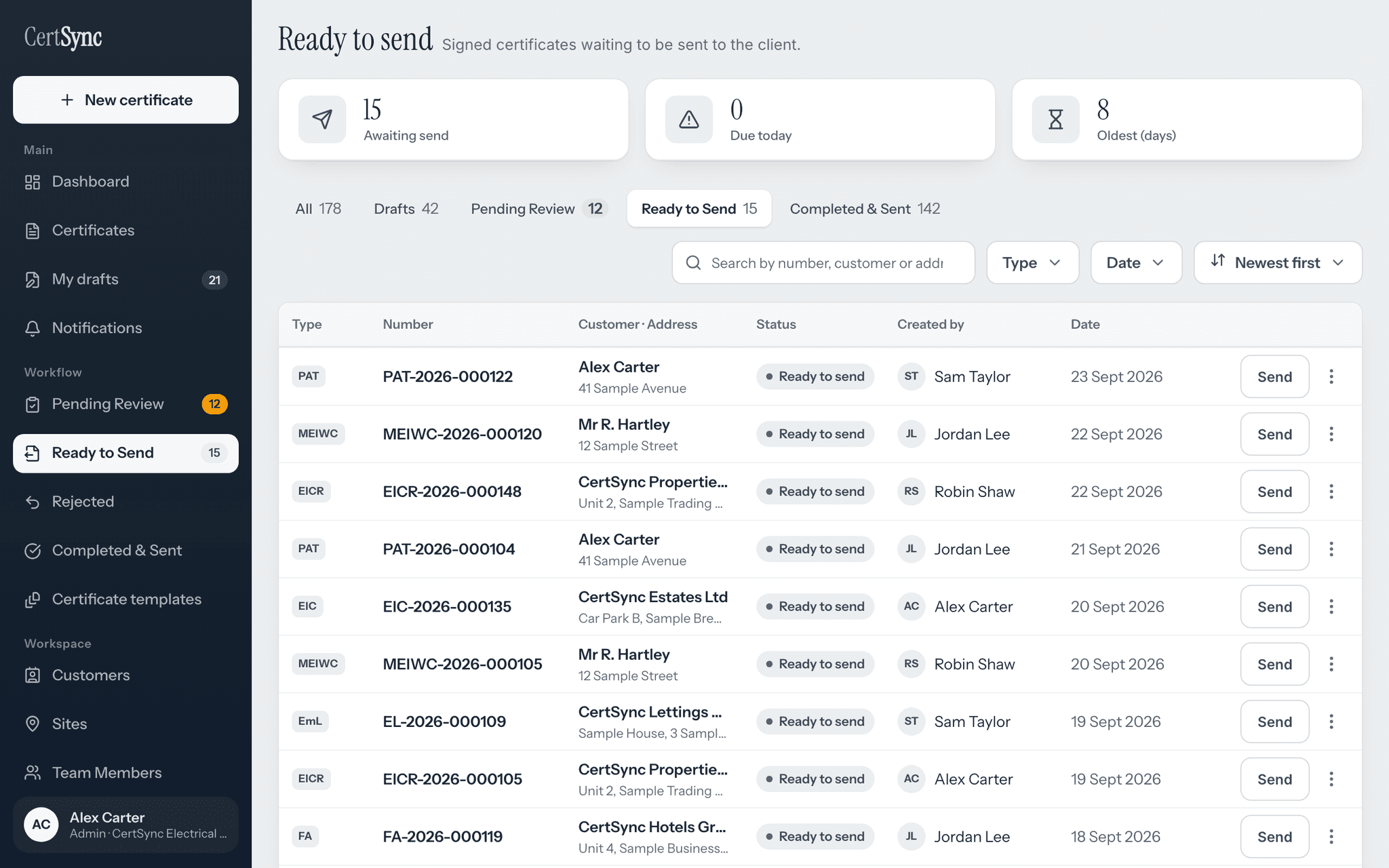
- Office users can see every certificate on the team at every stage, but cannot create, edit, approve, sign or delete one.
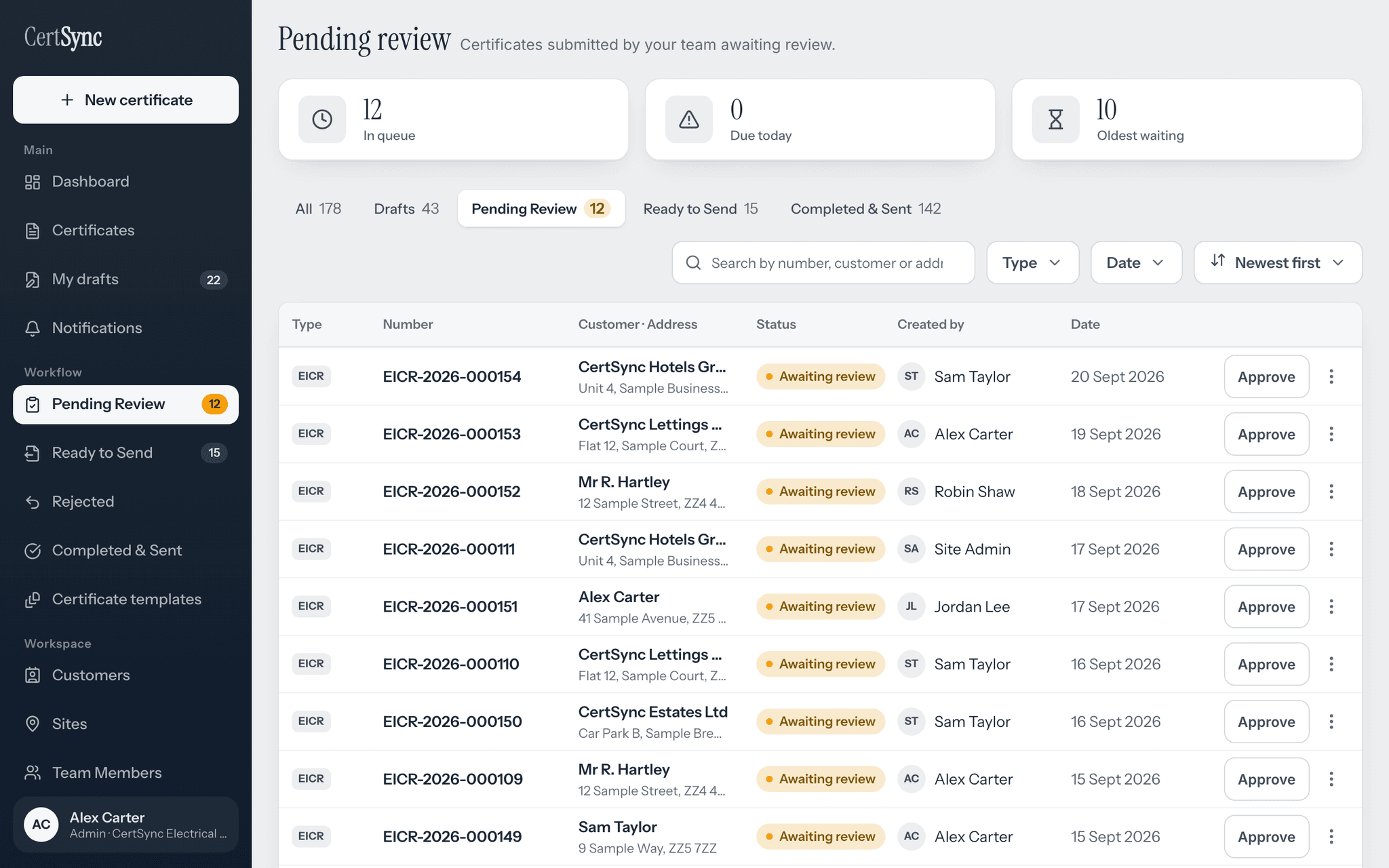
- Ready to send lists signed certificates that have not yet gone to the customer. Admins and office users send them by email.
- Only signed certificates can be emailed to a customer.
How it works
Three steps
Finish the certificate and submit it
The installer completes the certificate and submits it for review. It moves out of their drafts and the team reviewers are notified. Until a reviewer picks it up, the installer can withdraw it back to draft.
Review, then approve or send it back
A supervisor or admin opens the certificate from the review queue. If it is right, they approve it. If not, they send it back with a note, and it goes back to the installer as a draft to fix.
Sign it, then send it
A supervisor or admin signs the approved certificate, which gives it its final number. It then waits in Ready to send until an admin or office user emails it to the customer.
Good to know
The details
- Signing does not ask for a code each time. Accounts are protected by two-step sign-in with an emailed code at login, which is on by default.
- Before approving or signing, CertSync flags every failing reading and lists every problem at once. Anything missing that would make the certificate invalid, such as the overall assessment on an EICR, and any conflicting answers always block it.
- A signed certificate held back because the job is not finished stays in Ready to send, and only an admin can send it.
- Installers see their own certificates and their teammates' finished ones, not other people's drafts.
- Signatures are drawn on screen with a finger or mouse, or uploaded as an image.
- When a teammate is working in a section of a certificate you share, that section shows as locked by them until they move on.
Questions
Frequently asked questions
- I work on my own. Do I need someone to review my certificates?
- No. As the admin of your own account, finishing a certificate signs it directly, with no review step. The review queue only comes into play when installers on your team submit work.
- What happens when a reviewer sends a certificate back?
- It goes back to draft with the reviewer’s note attached. The installer gets a notification quoting the note (unless they have switched that notice off), the certificate appears under Rejected, and once it is fixed they submit it again.
- Can office staff send certificates?
- Yes. Office users can see every certificate on the team and send signed certificates to customers. They cannot create, edit, approve, sign or delete certificates, and a certificate held back because the job is not finished can only be sent by an admin.
- Do I have to enter a code every time I sign?
- No. Signing does not ask for a code. Your account is protected at login instead, with two-step sign-in by emailed code switched on by default.
- Can a signed certificate be changed?
- No. Once signed, a certificate is locked. If something needs correcting, you issue a new certificate that replaces it, and the original stays on record.
Keep reading
Related features, certificates and guides
Get started with CertSync
All 13 certificate types, one subscription. The first month is free.
First month free, then From £15/month. No fixed-term contract. Cancel any time.