Sending and downloads
Send signed certificates to your client, or download them all at once
Once a certificate is signed, it waits in Ready to send. Confirm the job is complete and CertSync emails your client the certificate as a PDF attachment, under your company name, and marks it as sent. It works on all 13 certificate types. When you need copies yourself, select up to 50 certificates and download their PDFs in one ZIP file.
What it does
Exactly what you get
- Signed certificates wait in a Ready to send list until they go to the client, so nothing signed is left unsent by accident.
- Only signed certificates can be emailed to a client. A draft, or anything not yet signed, is refused.
- Every one of the 13 certificate types can be sent to a client.
- Admins and office users can send certificates. A supervisor can send once they have been given office access; installers cannot send.
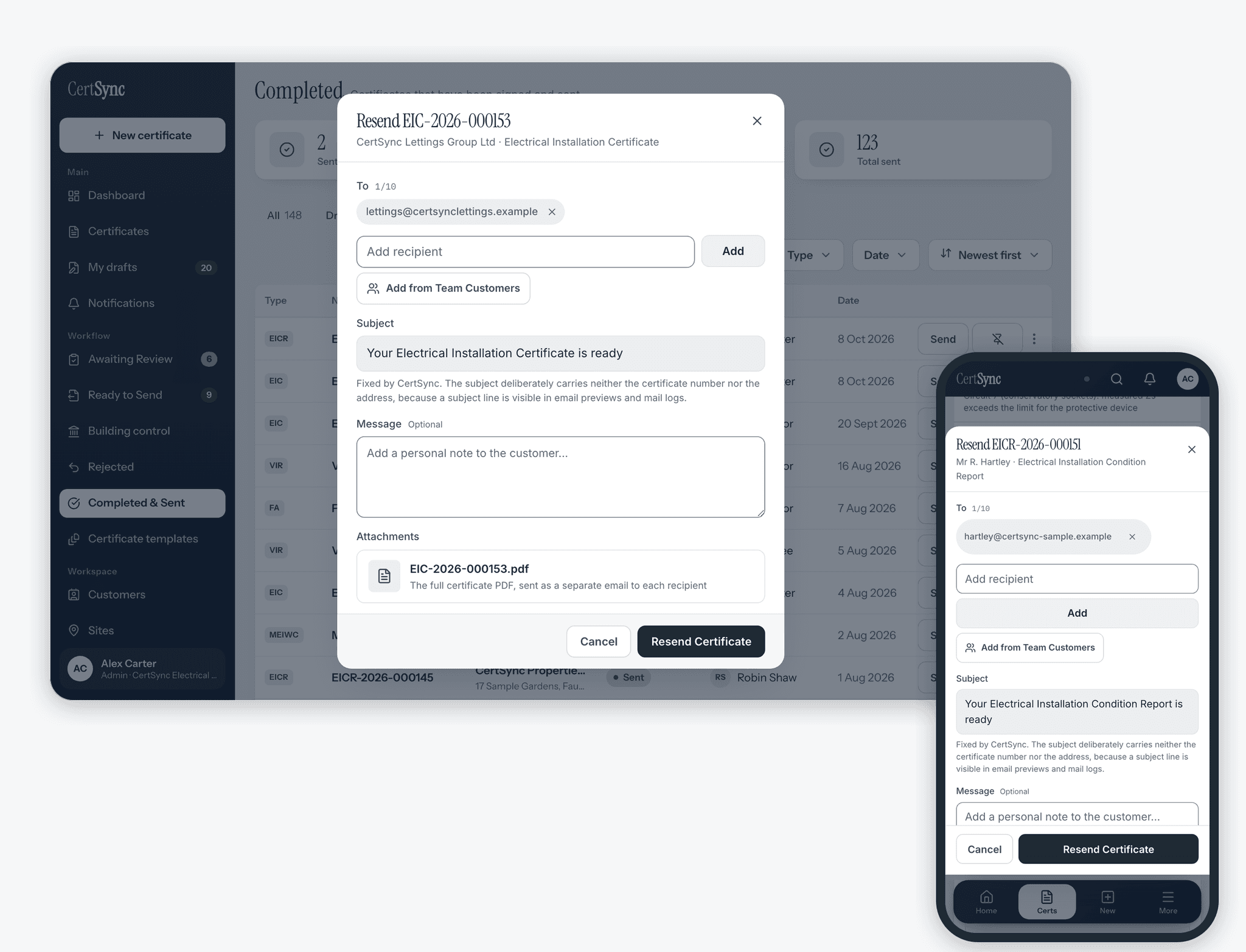
- The certificate is attached to the email as a PDF. The email itself carries no link to view the certificate online.
- You can send to up to 10 people at once. Each gets their own email, with no hidden copies.
- The email arrives under your company name, and your client’s replies go to the email address of the person who wrote the certificate, not to CertSync.
- When a certificate is signed, CertSync saves that exact PDF with a fingerprint. Emails and downloads use the saved copy, and if it cannot be read or does not match, the send stops instead of sending a different document.
- The DRAFT mark only appears on certificates that are not yet signed. The signed copy your client receives does not carry it.
- From a customer’s page, Send all emails every signed certificate for that customer that has not been sent yet, and then tells you how many were held back and why.
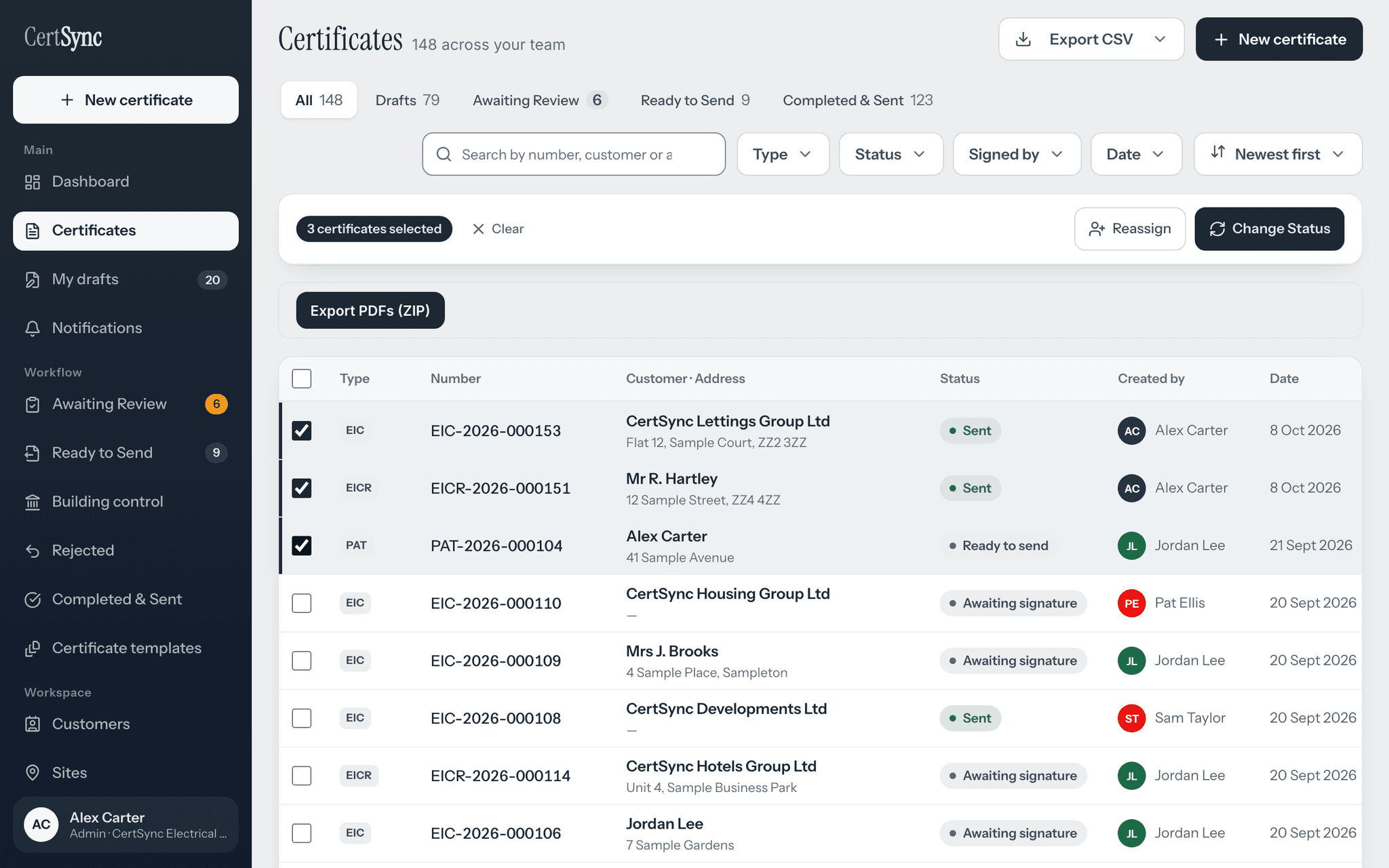
- Select up to 50 certificates in your certificates list and choose Export PDFs (ZIP) to download them all in one file.
How it works
Three steps
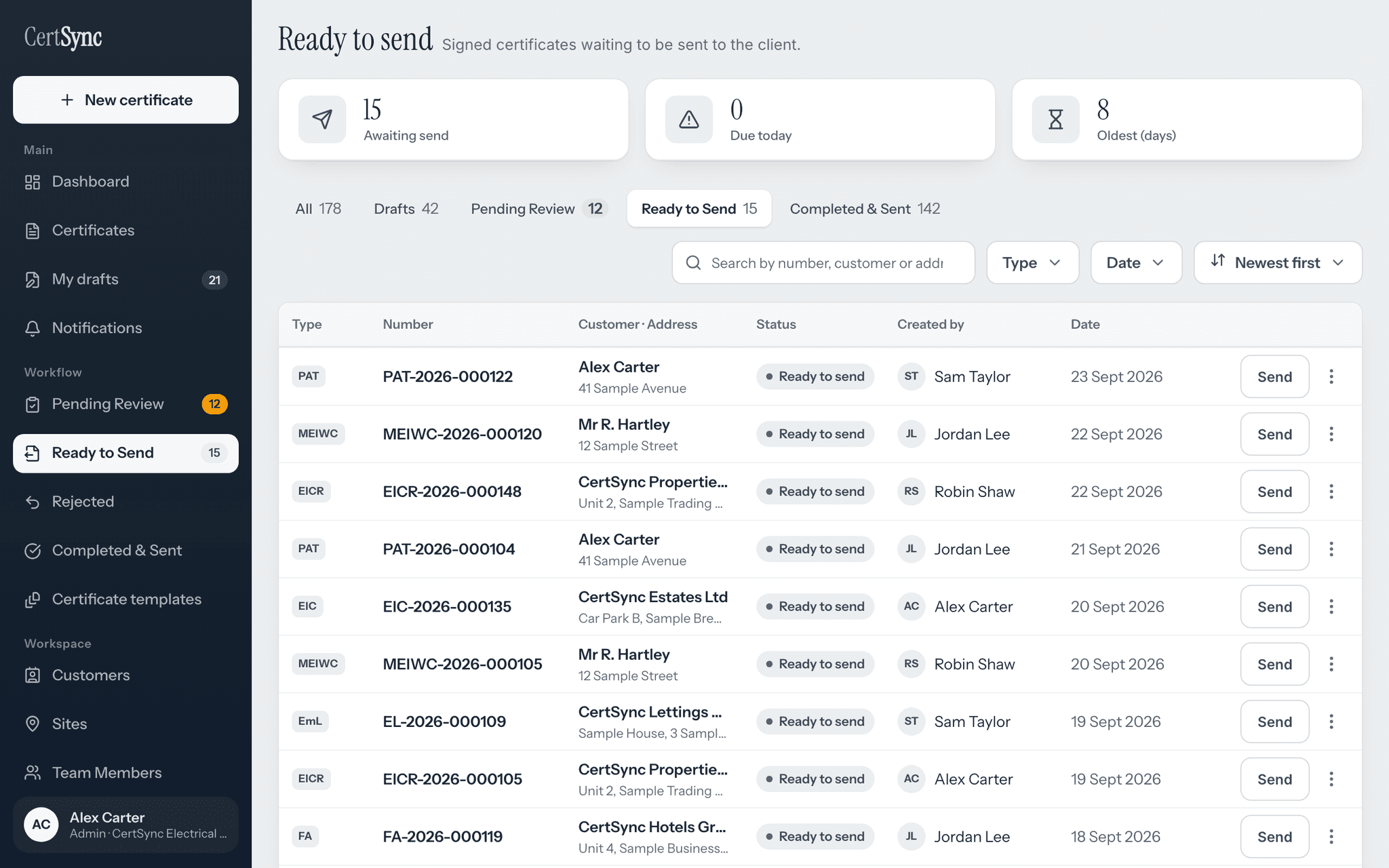
Sign it and it waits in Ready to send
Once a certificate is signed it appears in Ready to send, with the customer, address, who created it and the date. The counters at the top show how many are waiting and how long the oldest has waited.
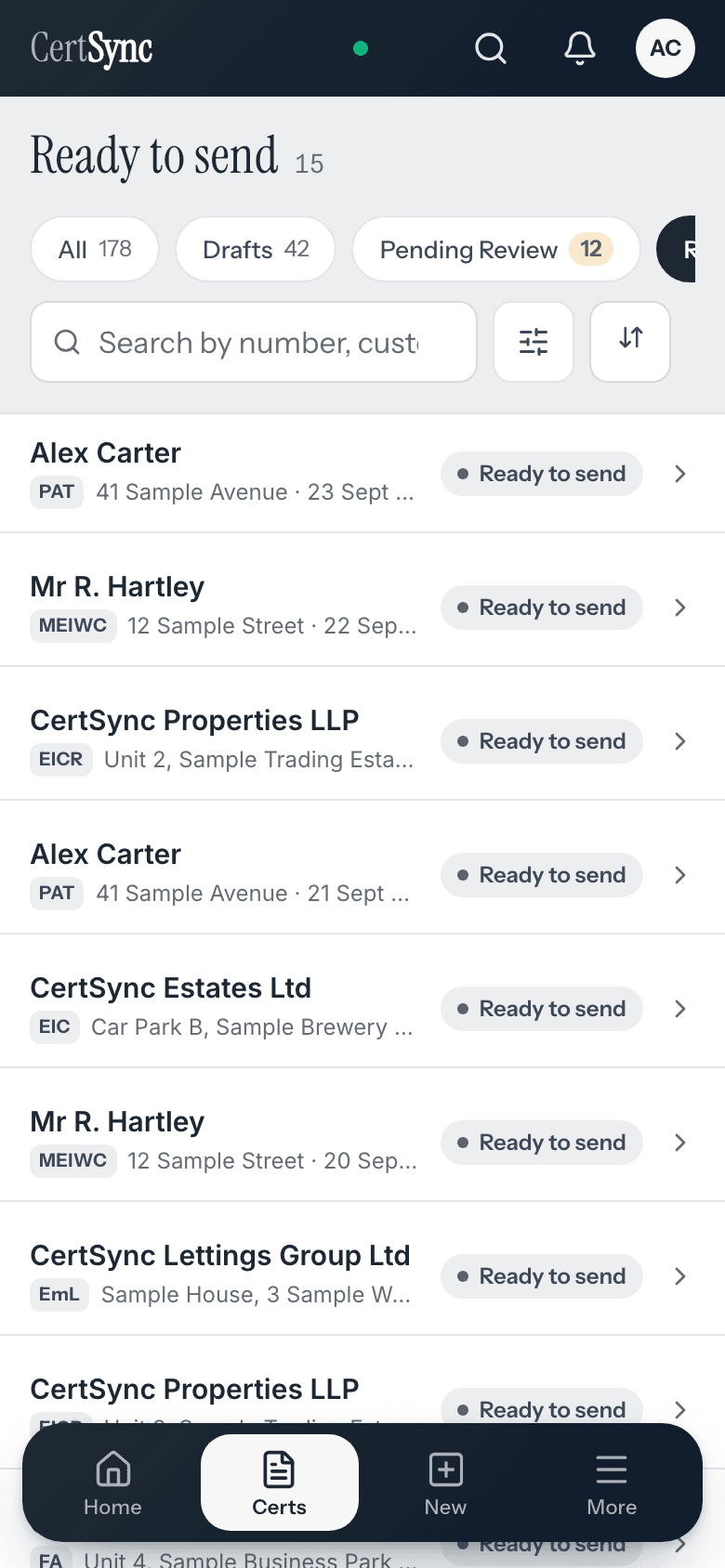
Confirm the job and send
Choose Send. CertSync shows the address the certificate is going to, or asks for one if the customer has none on file. Tick to confirm the job is physically complete, add notes if you want, and send. The certificate moves to Completed & Sent.
Download many at once
For your own copies, tick the certificates you need in your certificates list, up to 50 at a time, and choose Export PDFs (ZIP). Signed certificates come out as the copy saved when they were signed.
Good to know
The details
- If you send to an email address that differs from the one on the certificate, CertSync asks you to confirm before anything goes.
- A certificate signed before the job is marked physically complete can only be sent by an admin.
- Pressing Send twice will not email your client twice: a certificate can only be sent once at a time.
- The email subject names the certificate type only, not the serial number or address, because subject lines show in previews and mail logs.
- Every certificate PDF footer says it was prepared using CertSync and names your company as responsible for it.
- Send all puts certificates for the same recipient into one email, splitting it into several emails if the attachments are large.
- If a ZIP export cannot finish every certificate in time, the file includes a note listing the ones left out.
Questions
Frequently asked questions
- Does the email include a link to the certificate?
- No. The certificate is attached to the email as a PDF for your client to save. If you want someone to be able to check it online, print a QR sticker for it.
- Who on my team can send certificates to clients?
- Admins and office users. A supervisor can send once an admin gives them office access. Installers cannot send. A certificate signed before the job is marked physically complete can only be sent by an admin.
- Can I send a certificate to more than one person?
- Yes. From the send window on a certificate you can add up to 10 recipients, from the customer’s saved contacts or typed in. Each person receives their own email; nobody is copied in or hidden.
- Can I send a draft to a client?
- No. Only signed certificates can be emailed to a client. Drafts carry a DRAFT mark so they cannot be mistaken for the finished certificate.
- Can I add a note to the email?
- Yes. The send window has an optional Message box of up to 500 characters, which appears in the email. The subject line is set by CertSync and names the certificate type only.
- How do I download lots of certificates at once?
- Tick the certificates you want in your certificates list, up to 50 at a time, and choose Export PDFs (ZIP). Signed certificates come out as the copy saved when they were signed.
Keep reading
Related features, certificates and guides
Get started with CertSync
All 13 certificate types, one subscription. The first month is free.
First month free, then From £15/month. No fixed-term contract. Cancel any time.