Form and PDF side by side
See the certificate take shape while you fill it in
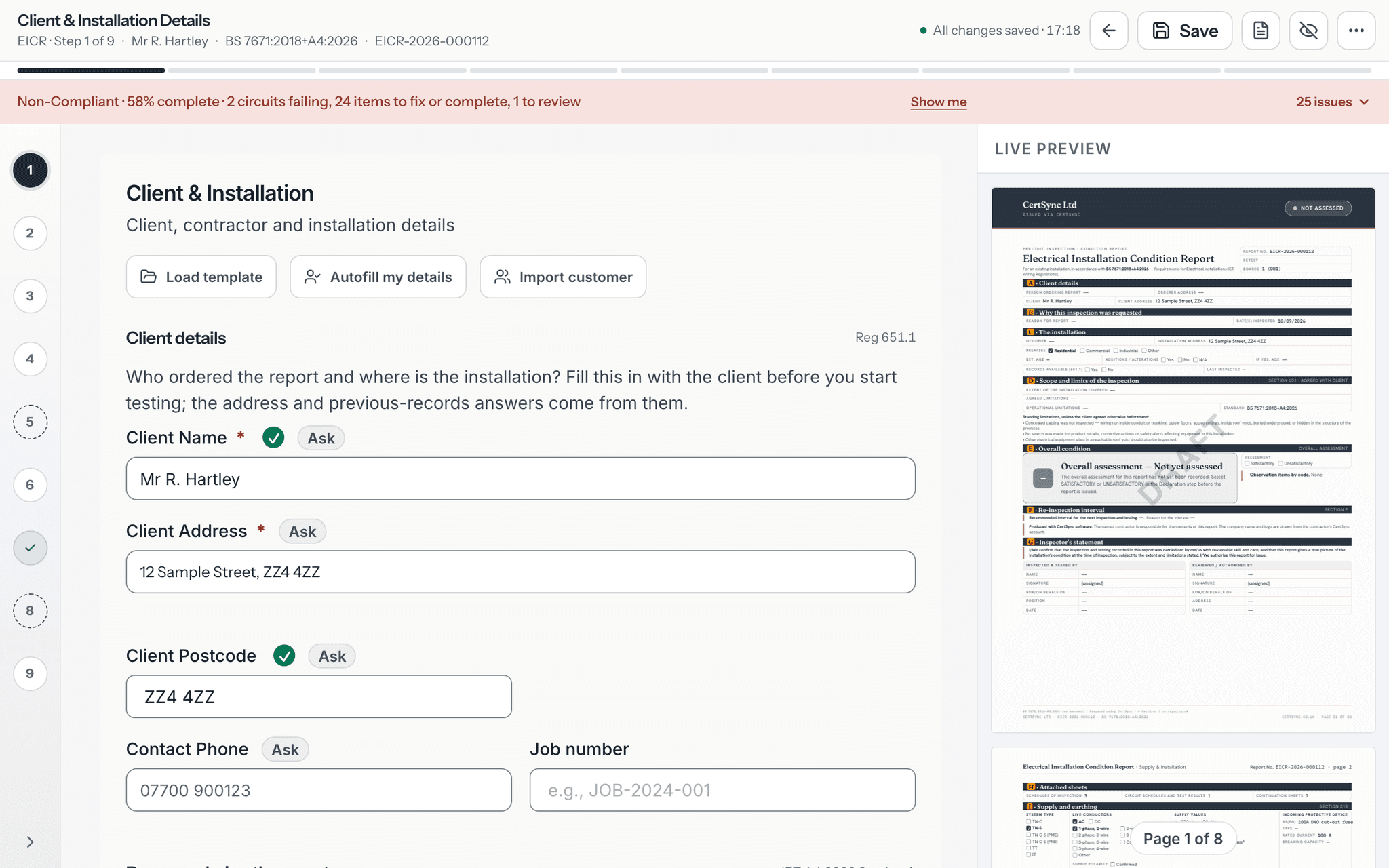
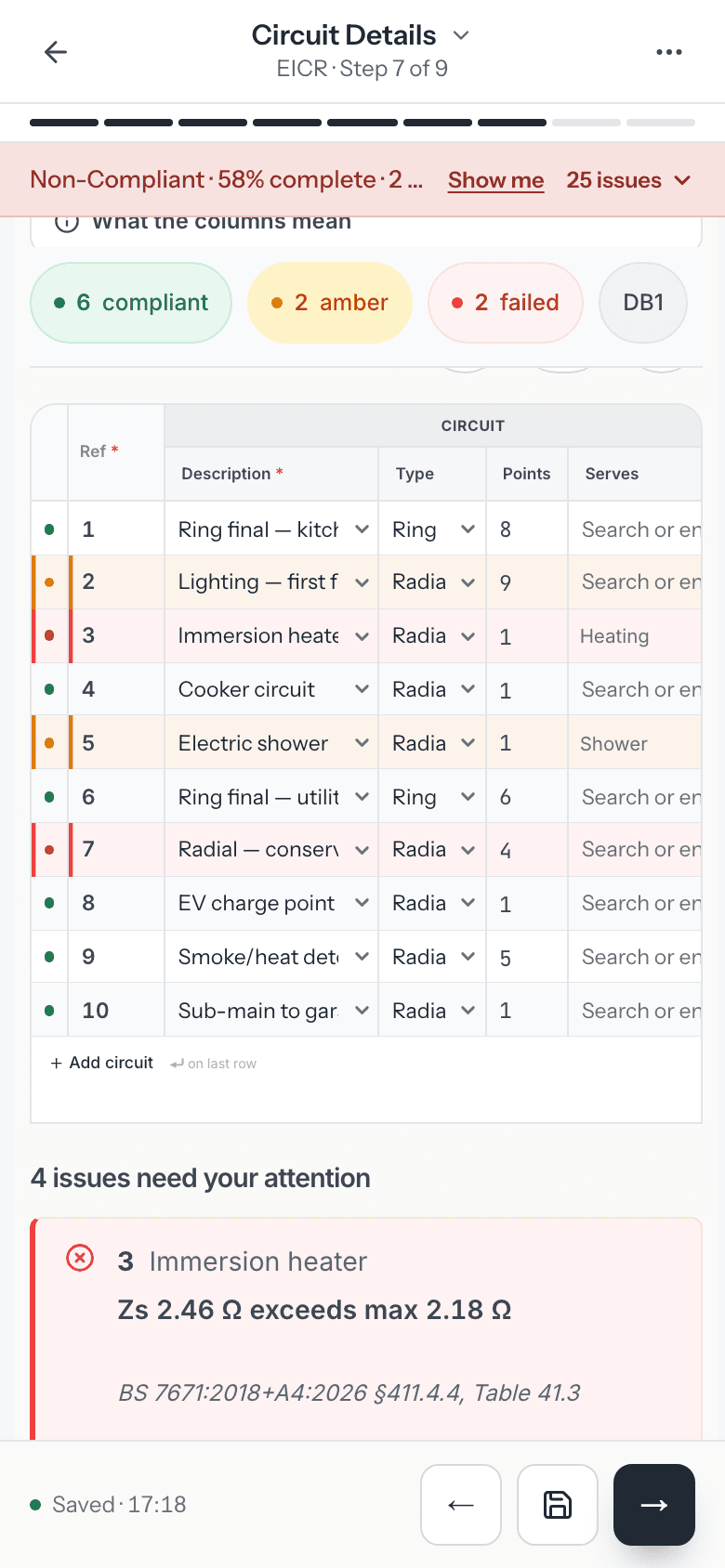
On a laptop or desktop, CertSync can show the finished certificate PDF beside the form. Fill in a field, pause, and the preview redraws with your answer in place, on all 13 certificate types. You check the layout as you go instead of generating a PDF, spotting a mistake and starting again.
What it does
Exactly what you get
- Add your company logo once (PNG, JPEG or WebP) and it prints on your certificate PDFs. A team admin sets it for the whole team.
- The preview sits beside the form on screens 1,024 pixels wide and wider, such as a laptop or desktop.
- It stays off until you switch it on with the Show PDF preview button, and that choice is remembered on the device.
- It works on every one of the 13 certificate types.
- The preview redraws about four seconds after you stop typing, and Update now redraws it straight away.
- While it redraws, the previous version stays on screen, so the panel never goes blank.
- Every page of the certificate is shown in one scroll, with a page count.
- Unsigned work carries a DRAFT mark in the preview.
- Photos and attachments you have added, your company logo and your business details appear in the preview.
- The preview is built from your answers by the same mapping step the issued PDF uses.
- It is drawn with the same certificate templates as the issued PDF.
How it works
Three steps
Start any certificate
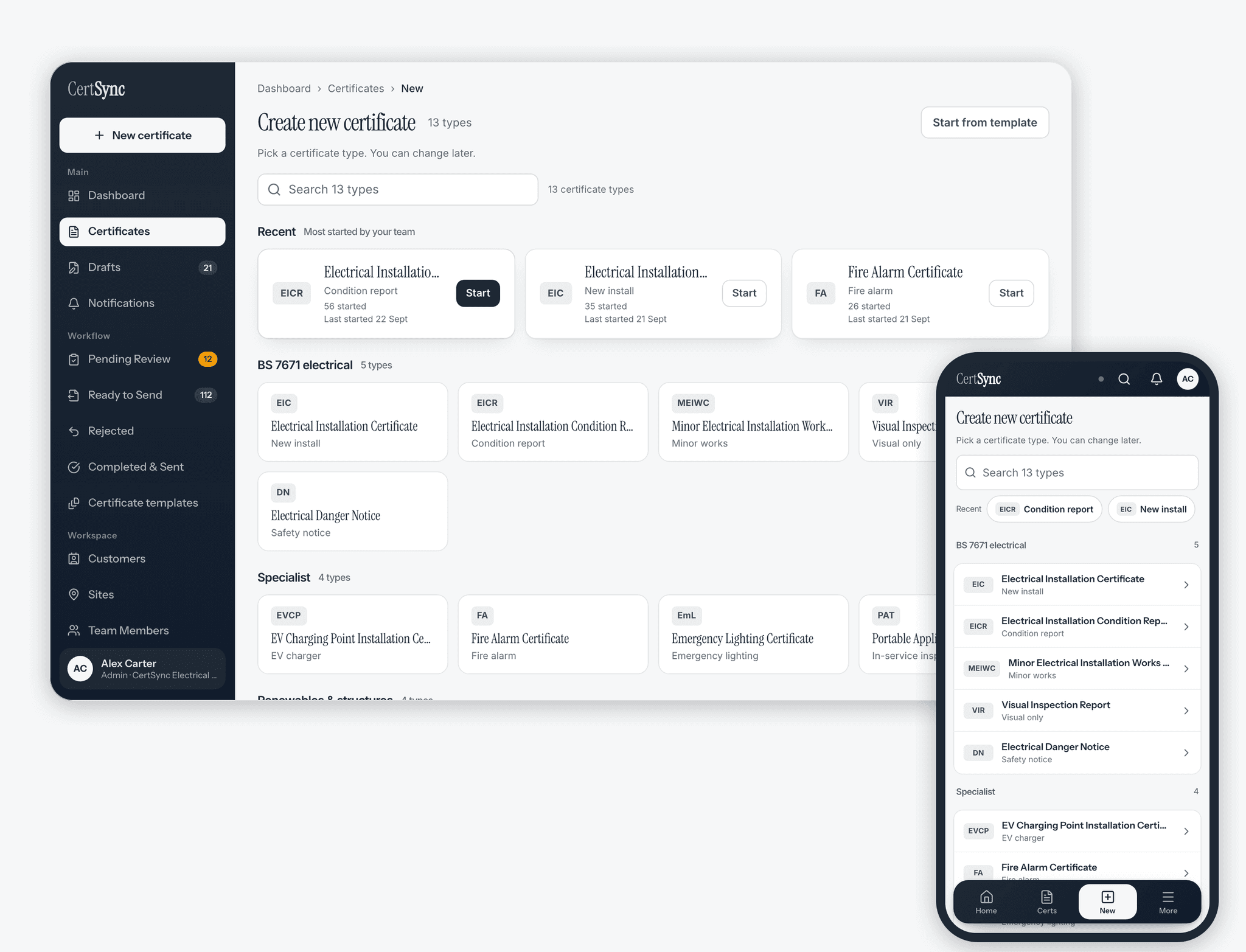
Pick one of the 13 certificate types. The preview works the same way on every one of them.
Switch on the preview and fill in the form
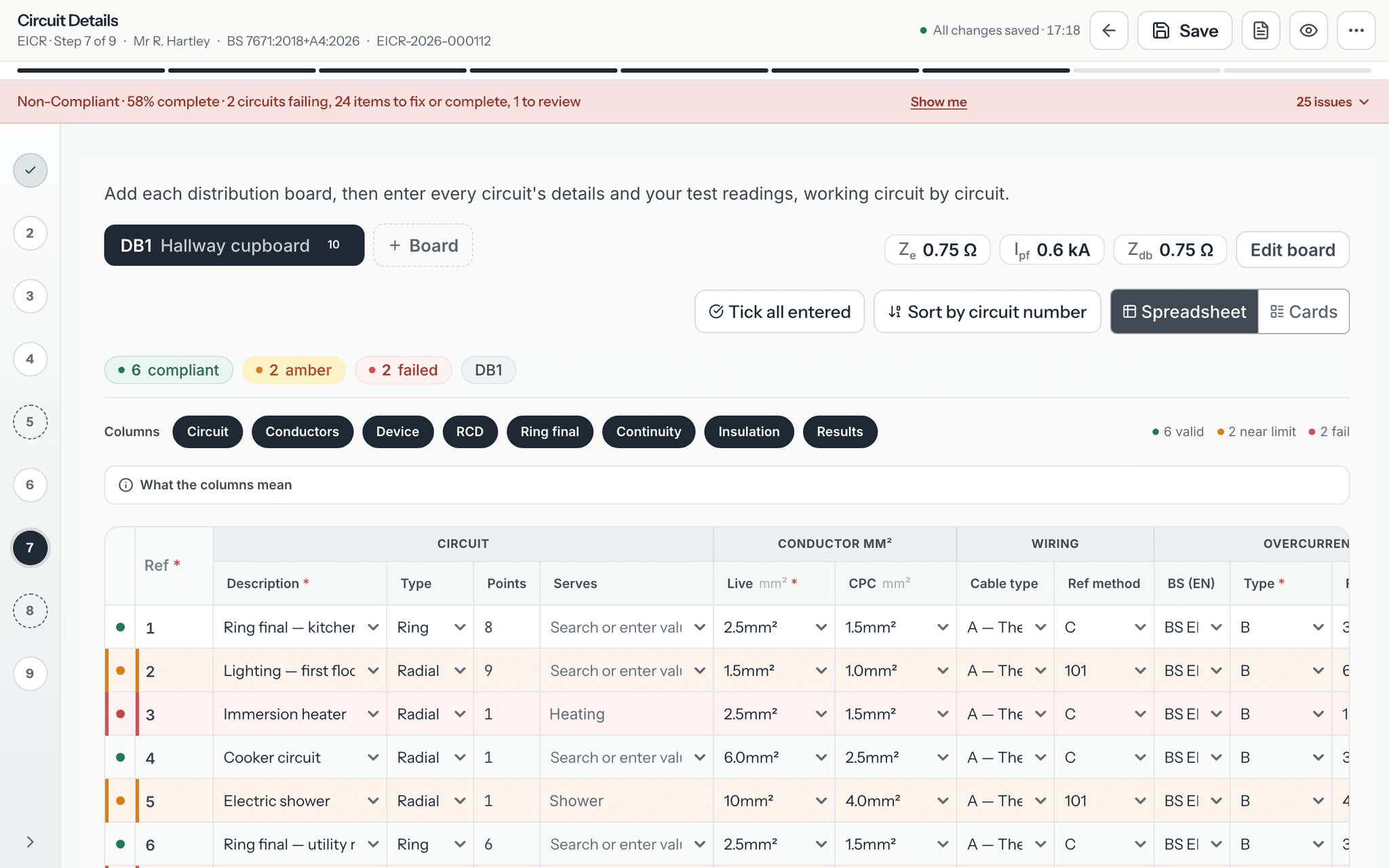
Press Show PDF preview in the toolbar. The panel opens beside the form and draws the certificate from what you have entered so far. Keep working through the steps as usual.
Check the page, then send it
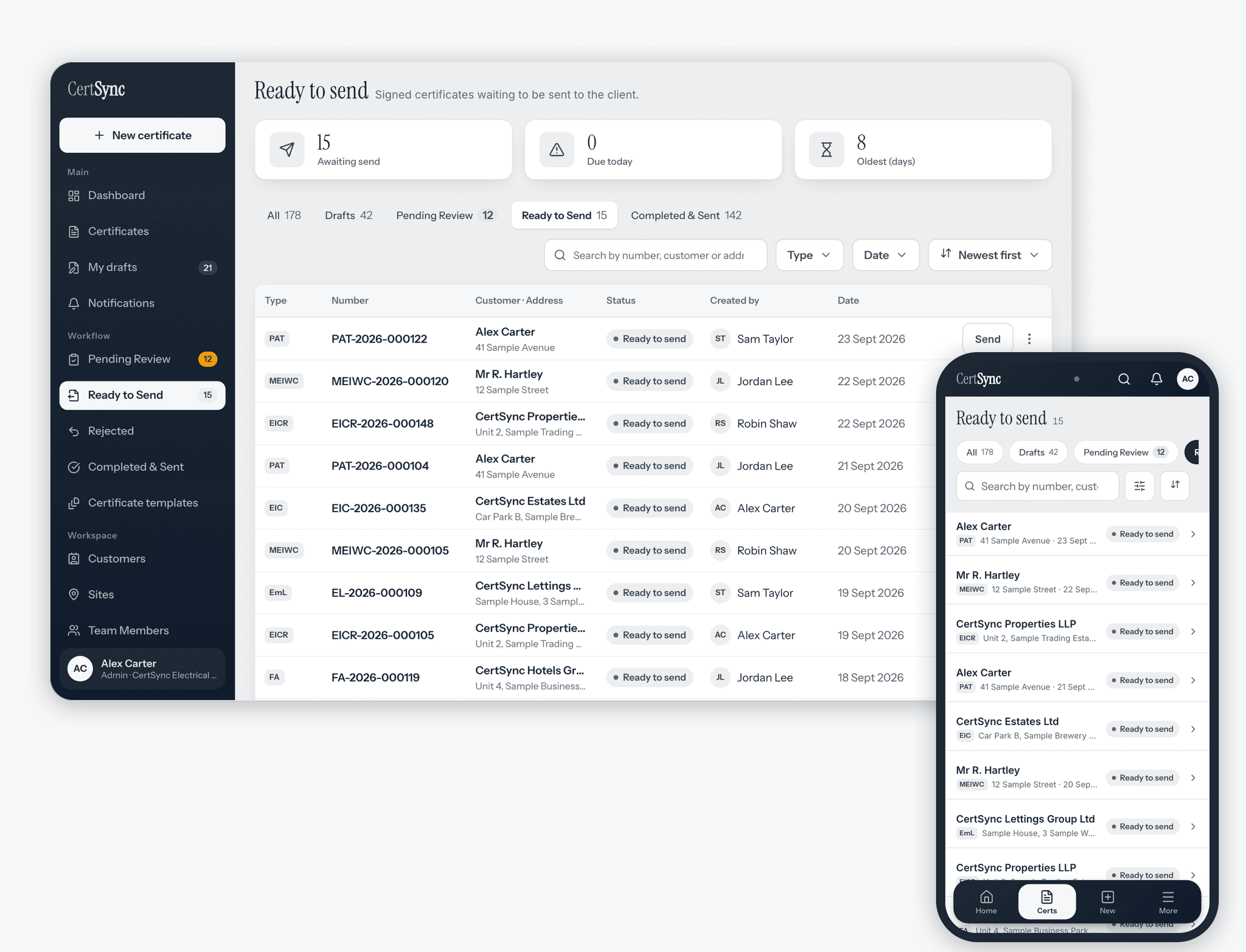
Read the page as your customer will. If something is in the wrong place, fix it in the form and the preview catches up. Once the certificate is signed, it is ready to send from your ready-to-send list.
Good to know
The details
- With no signal, the preview still draws from what is saved on the device. Photos, attachments and your logo are left out until you are back online.
- On a phone, Preview PDF in the bottom bar opens the certificate full screen instead of a side panel.
- Hide the panel with the same button to give the form the full width again.
Questions
Frequently asked questions
- Is the preview the same as the certificate my customer receives?
- It is drawn from the same answers, by the same mapping step and certificate layout as the issued PDF, so what you check is what gets issued. While the certificate is unsigned the preview carries a DRAFT mark; the signed certificate does not.
- Why does the preview take a few seconds to update?
- It redraws the whole certificate, every page, each time. To keep the form quick while you type, it waits until you pause for about four seconds. Press Update now in the panel header if you want it sooner.
- Can I see the preview on a phone or tablet?
- The side panel needs a screen at least 1,024 pixels wide, such as a laptop, a desktop or a large tablet in landscape. On a phone, the Preview PDF button opens the whole certificate full screen instead.
- Does the preview work without a signal?
- Yes. It draws from what is saved on the device. Photos, attachments and your company logo are added back once you are online again.
- Which certificates have the live preview?
- All 13 certificate types, from the EIC and EICR to fire alarm, emergency lighting and solar PV certificates.
Keep reading
Related features, certificates and guides
Get started with CertSync
All 13 certificate types, one subscription. The first month is free.
First month free, then From £15/month. No fixed-term contract. Cancel any time.